

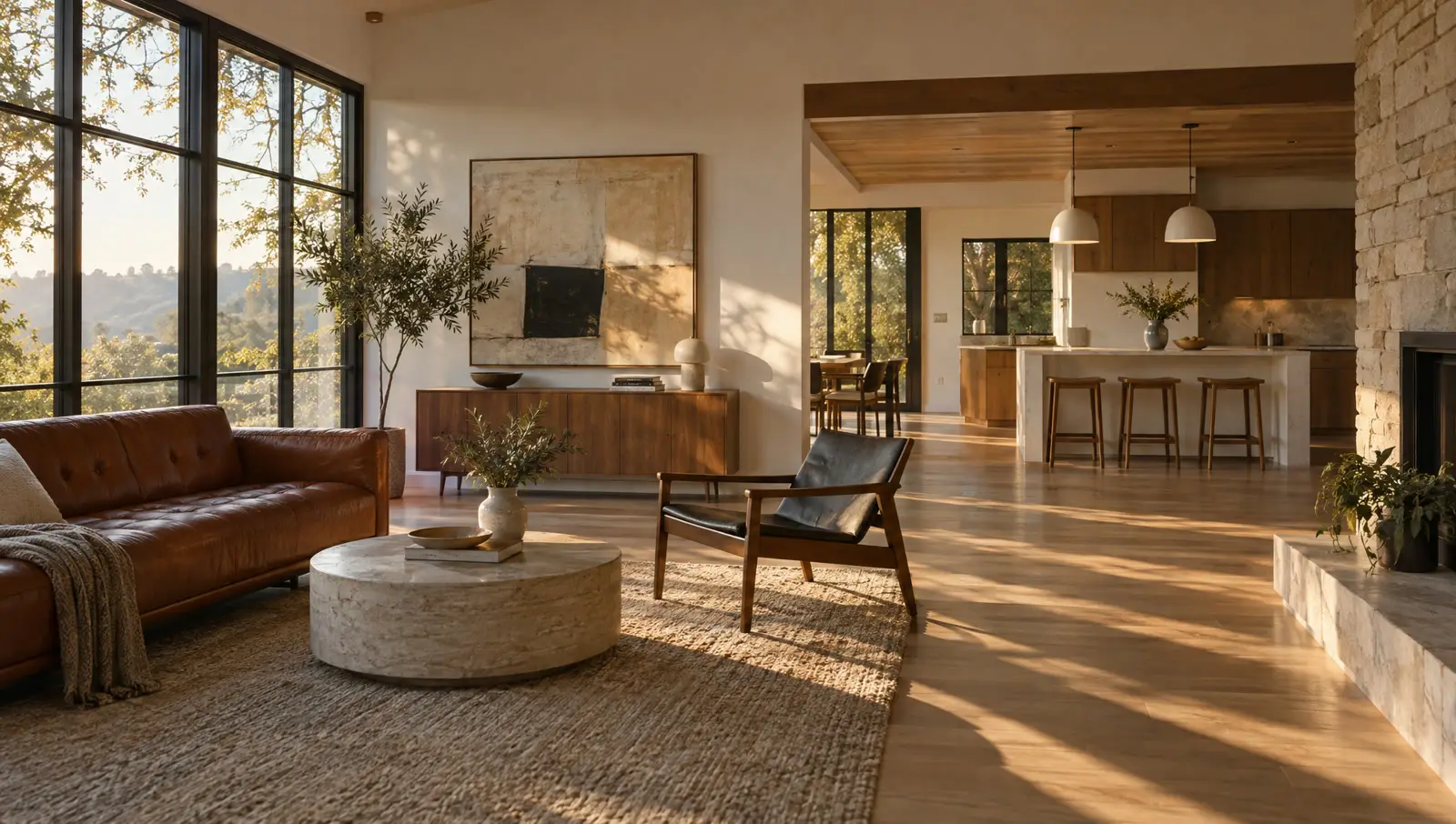
Create AI real estate listing videos with an API
Summary
Real estate and property listing apps and platforms can turn a listing’s photos into staged photos of its empty rooms, seasonal versions of the house and a video tour that walks through the home, automatically for every listing when it’s added to the platform.
The craft is fidelity: every shot is built from the property’s own photos, edits happen on the stills first and anything altered carries a label.
This article covers those three use cases step by step, then shows how to run them all from one automated Workflow.
You can do much more with the photos you already have. Furnish the empty rooms, show the house in another season or at dusk and turn the photos into a video that walks a buyer from the front door to the garden. With Runway Dev, you can add all of it to your app or platform, so every listing you or your users publish gets it automatically, not just the ones with a budget for a shoot.
This article covers three use cases, in this order: virtual staging, season and time-of-day variations, property video tours. Then it shows the Workflow that runs all three for every new listing.
Here’s a short tour made this way from three listing photos:
Inputs
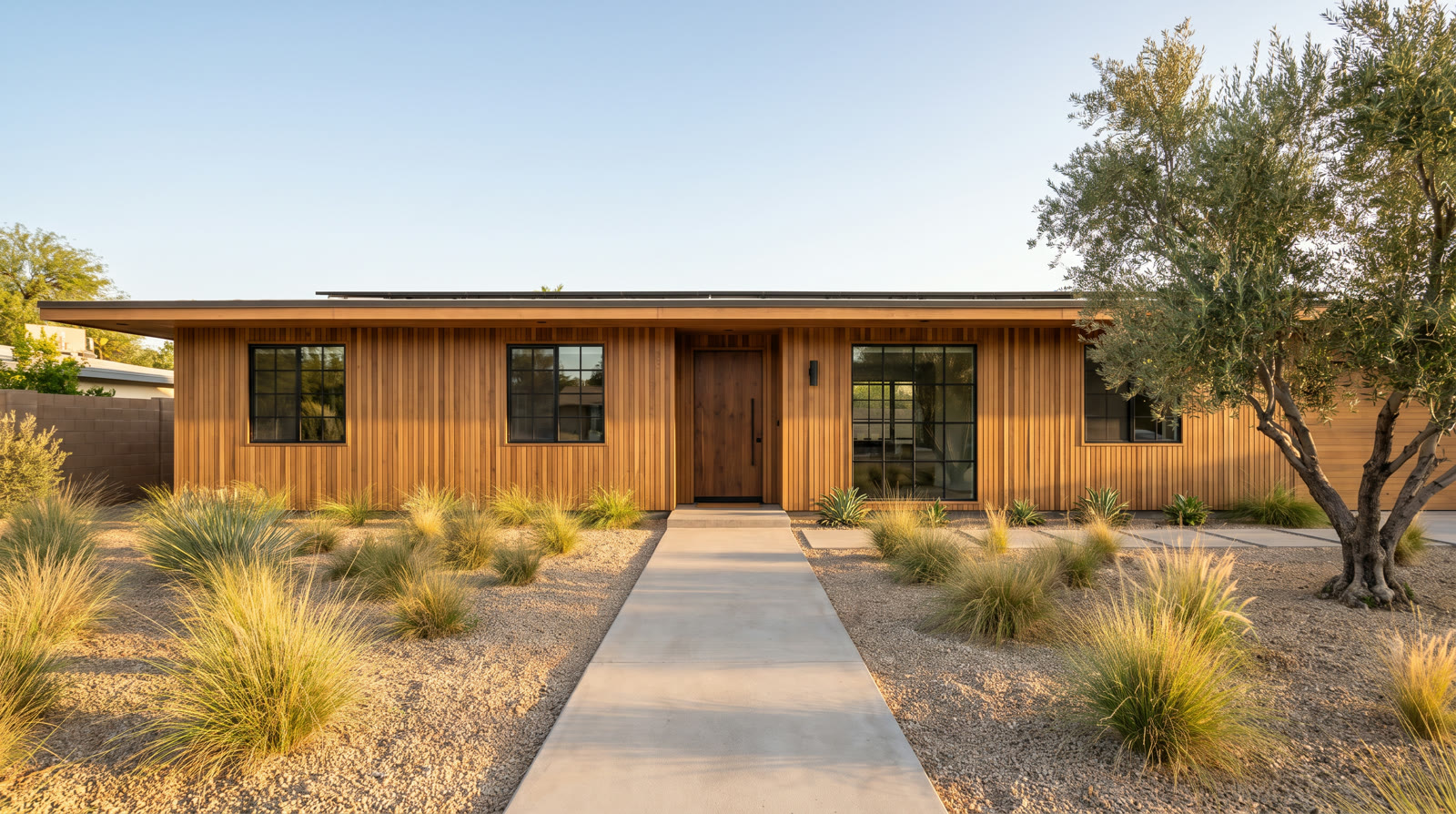 Exterior photo
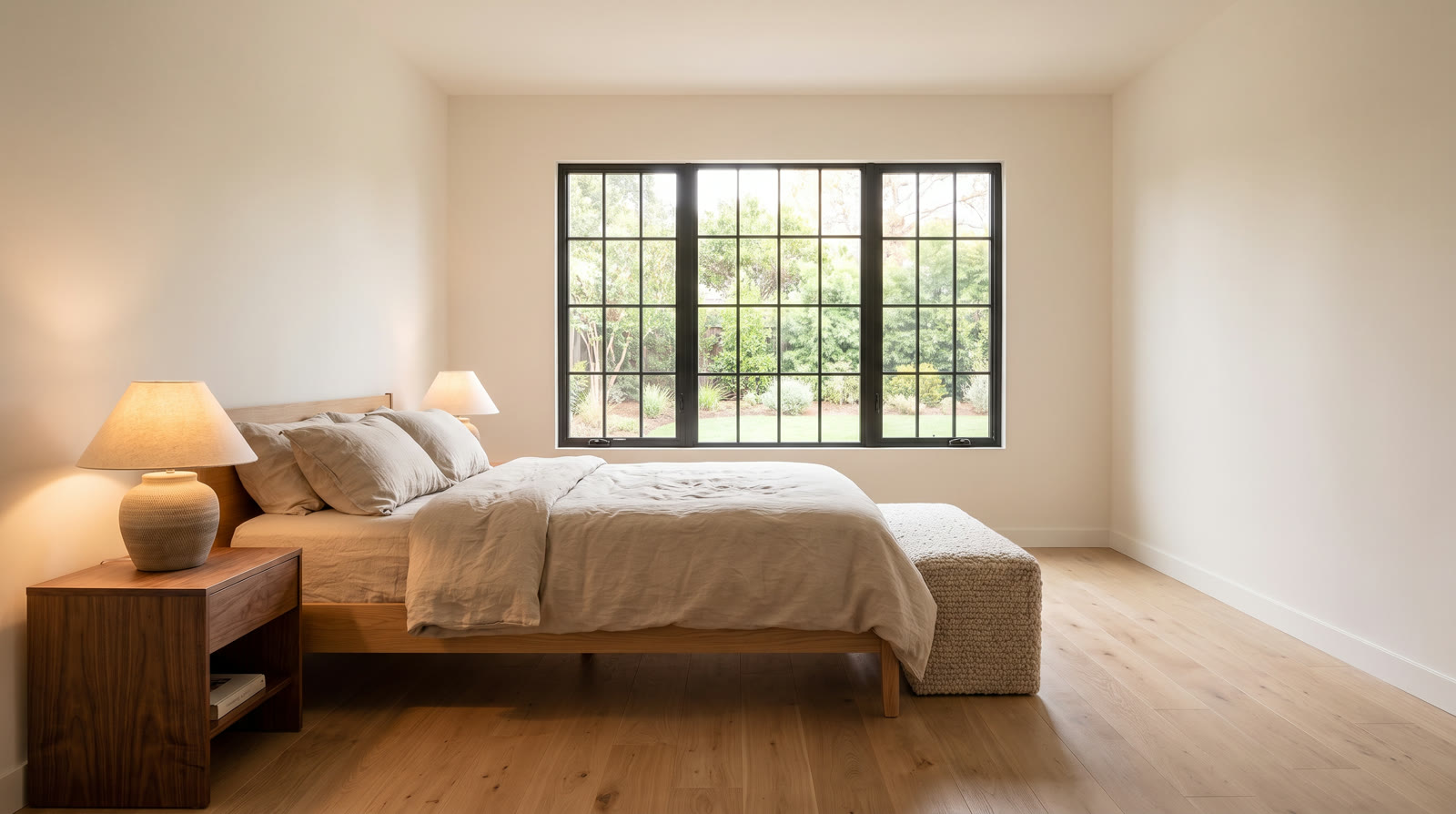 Bedroom photo
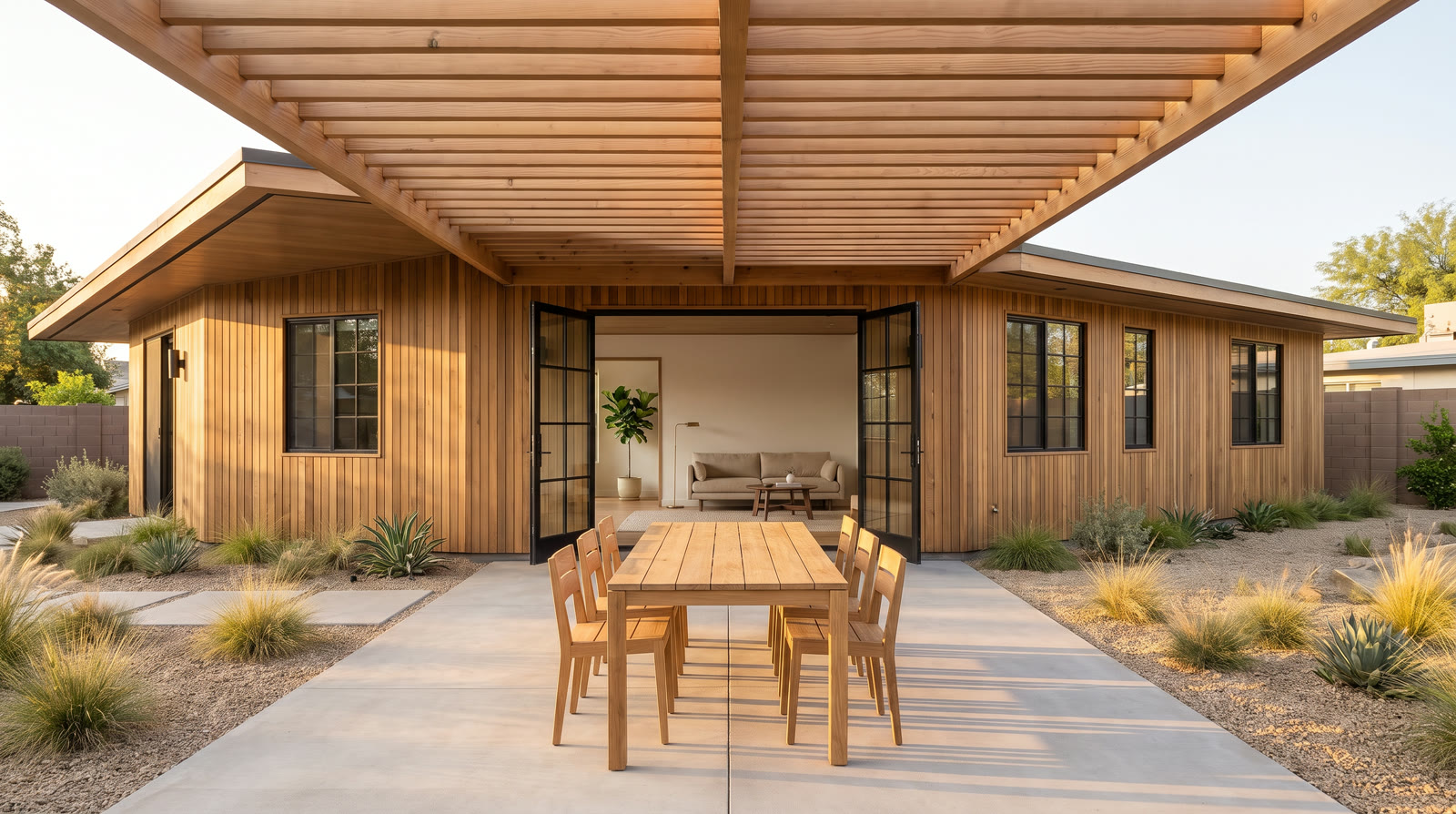 Garden photo
Prompt
Exterior: Real estate listing video. The camera moves straight forward along the concrete path toward the walnut front door, staying centered on the path at eye level, so the house grows slowly larger in the frame, one smooth gimbal move with no sideways drift and no turn. Only the camera moves: nothing in the scene moves, opens, flickers or changes. Keep every wall, window, door, cabinet, plant and piece of furniture exactly as in the photo, with no new objects. No people. The olive tree and the grasses stay still.

Bedroom: Real estate listing video. A slow, steady push-in at eye level from the doorway toward the window that stops well before it reaches the bed, so the whole bed and the bench stay in the frame the whole time, one smooth gimbal move. The camera never passes over or through the bed or the bench. Only the camera moves: nothing in the scene moves, opens, flickers or changes. Keep every wall, window, door, cabinet, plant and piece of furniture exactly as in the photo, with no new objects. No people.

Garden: Real estate listing video. A slow, steady push-in at eye level toward the open glass doors of the house that stops before it reaches the dining table, so the table stays in the foreground the whole time, one smooth gimbal move. The camera never passes over or through the table or the chairs. Only the camera moves: nothing in the scene moves, opens, flickers or changes. Keep every wall, window, door, cabinet, plant and piece of furniture exactly as in the photo, with no new objects. No people.

Music: Instrumental background music for a calm home tour video: warm felt piano and soft nylon-string guitar, gentle and unhurried, about 70 beats per minute, light and optimistic, no vocals, no drums, no sound effects. Twenty seconds long, ending on a soft resolved chord.

Voiceover: Mid-century calm, renovated with care. White oak floors throughout, a primary suite filled with morning light and a garden made for long evenings.
Step 1: Decide which listing photos to edit, stage or animate
Before anything is generated, go through the listing photos and note what each one needs. That list decides which image requests run in Step 2 and which photos go on to become video.
- Empty rooms. Which rooms would read better furnished? Each one becomes a virtual staging request.
- Messy or dirty rooms. An unmade bed, dishes in the sink, toys on the floor or a cluttered counter, tidied with an image edit. Clean up the mess, not the condition: stains, wear and damage stay, because the photos have to show the property as it is.
- Things to remove. Clutter, personal photos, a car in the driveway or a photographer reflected in a mirror. Every removal changes the image, so it gets the same label as staging.
- Light and quality. A dark room, a tilted horizon, a cold white balance or a photo too small to hold up as video, fixed with corrections and upscaling. Rooms lit differently, lamps on in one and blinds open in the next, won’t cut together in a tour, so correct them to match or leave one out.
- Formats. The aspect ratios the listing needs: the gallery’s own, 16:9 for the listing page and YouTube, 4:5 and 1:1 for feeds, 9:16 for Reels, TikTok and Stories. Check that the room still reads in each crop, and plan a wider version where it doesn’t.
- Seasons and time of day. Which shots get a winter or twilight version, usually the exterior and the garden.
- Video candidates. Photos with depth, a view down a hallway, through a doorway or across a room at an angle, so the camera has somewhere to go. A photo taken square to a flat wall gives it nowhere to move.
Step 2: Correct listing photos and virtually stage empty rooms
Make every change on the still, before it becomes video. A fix on the photo carries into every frame of every clip made from it, and it costs one image request instead of a regenerated clip.
- Corrections. Exposure, white balance and straightening keep the photo true to the property. Small feed photos go through
POST /v1/image_upscalewith Magnific’s Precision Upscaler on itsphotosetting, with its detail settings low so it doesn’t invent texture. - Changes. A staged room, a decluttered one or a twilight version of the exterior comes from an image model that takes the photo as a reference, such as Nano Banana Pro or GPT Image 2.5. These change what the photo shows, so treat them as altered images: keep the original and label the edit, as California’s AB 723 requires of real estate licensees.
Virtual staging is an image job first: the staged photo is what goes in the listing gallery, next to the empty original, and animating it later is optional. One Nano Banana Pro request furnished this spare room in the style of the house and kept the walls, floor, window and light as they were:
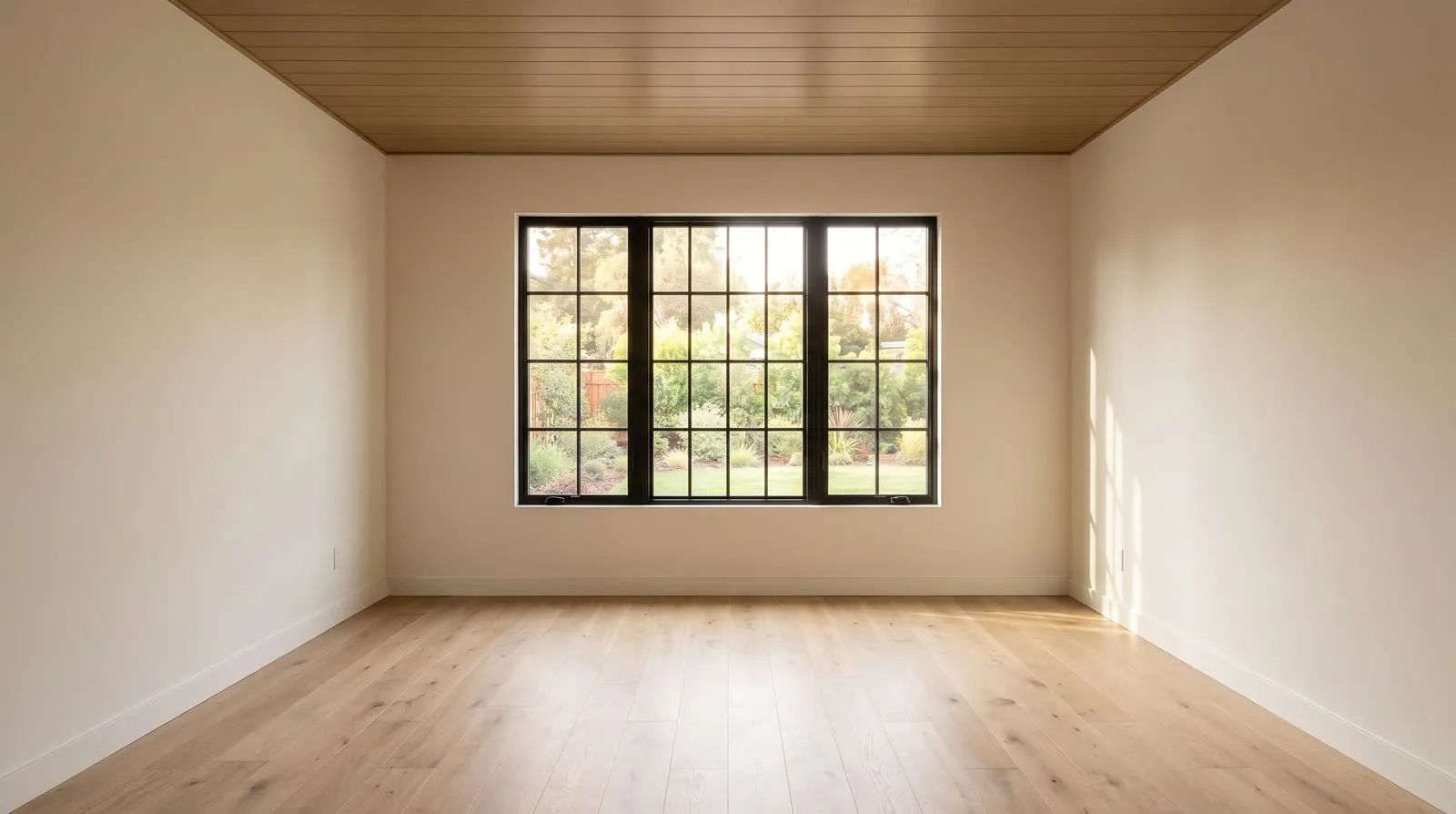
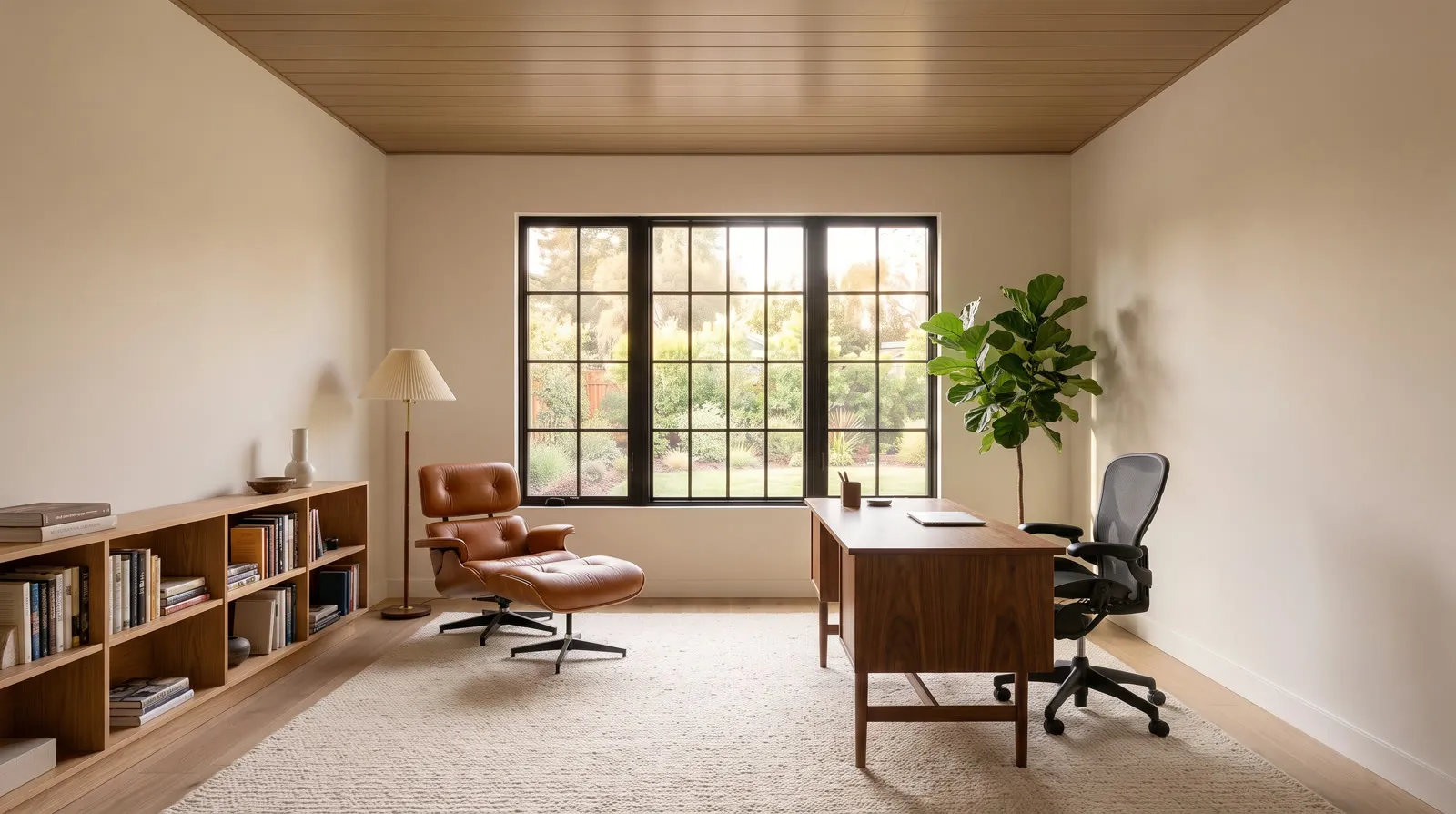
Step 3: Change the season or time of day in a listing photo or video
Season and time-of-day variations add views of the house next to the originals, in the other seasons and at dusk, from photos taken on one afternoon. Both are edits of what the photo shows, so treat them as altered images and label them.
Edit the photo or the video you already have
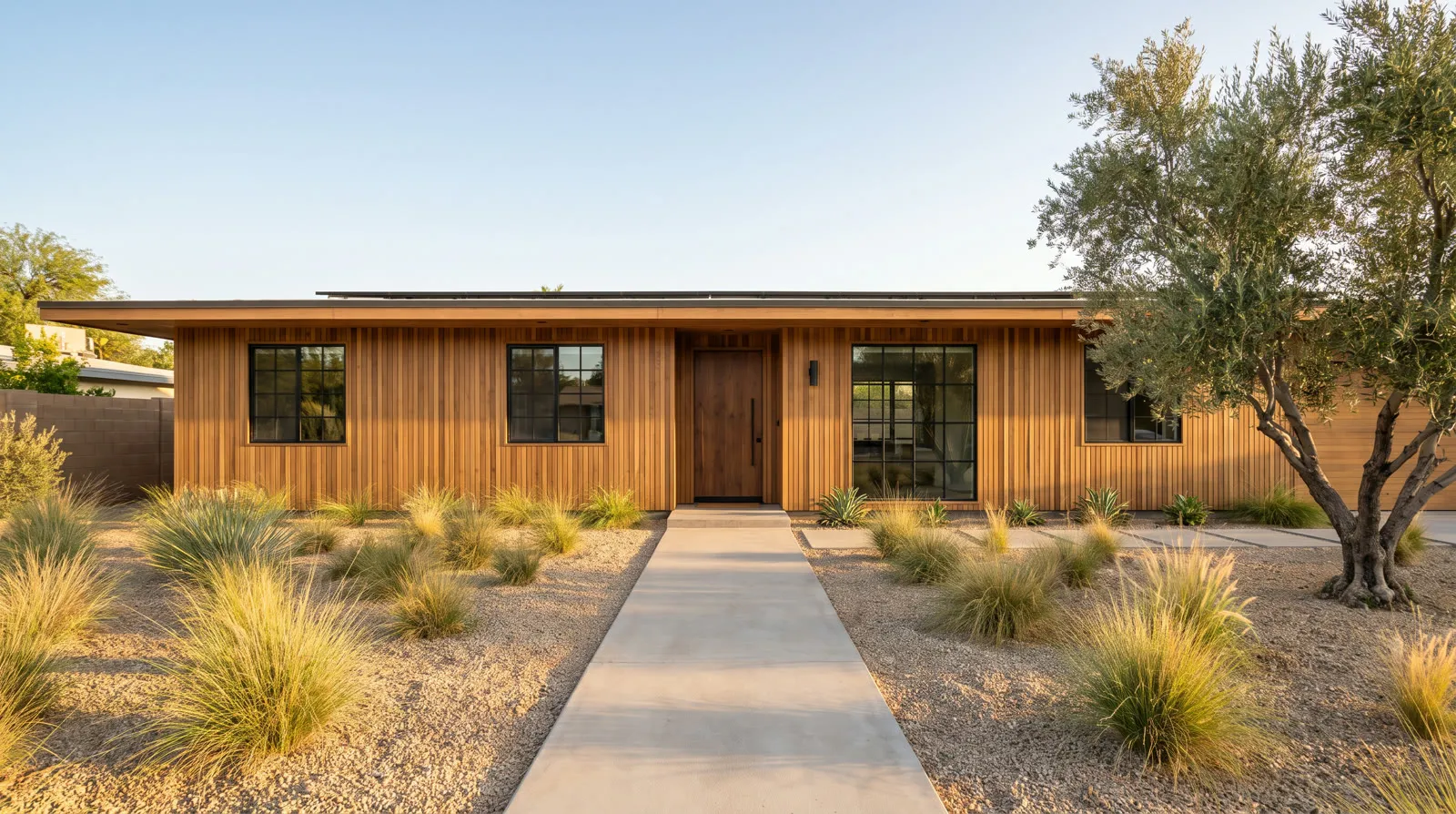
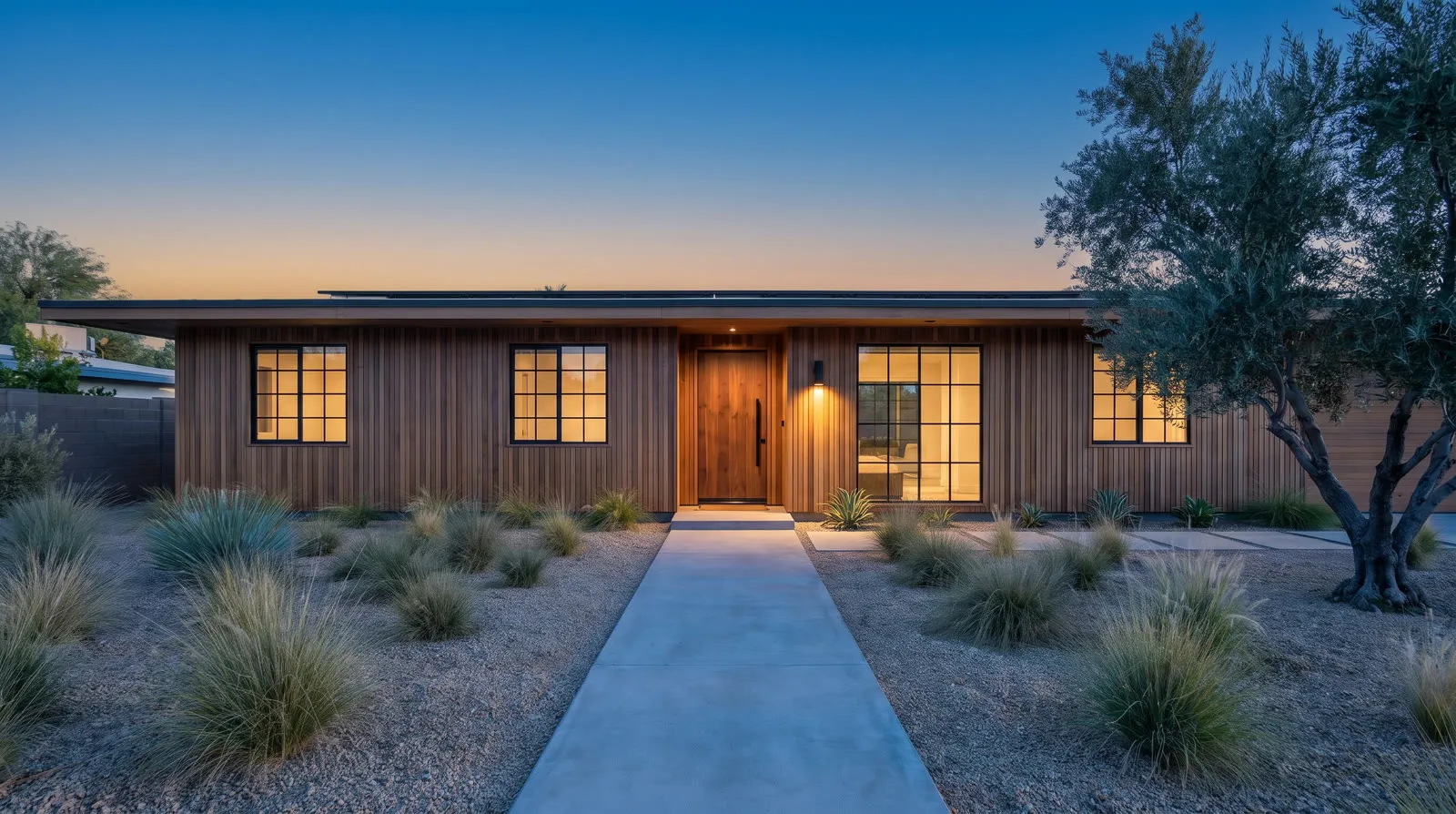
Either change works on either medium. On a photo, an image model such as Nano Banana Pro or GPT Image 2.5 takes the listing photo as a reference and returns it in another season or at dusk, a new photo for the listing gallery. Check the windows before you use the edit: image models tend to light up the rooms behind the glass and can redraw the frames, so ask them to keep the frames and panes as they are.
Prompt
Relight @front as the same photo taken at dusk. Change only the light: a deep blue evening sky with a soft warm glow low on the horizon, the siding, path and garden in cool blue dusk light, and the light by the front door switched on with a warm glow. Leave every window exactly as it is in @front: the same frames, the same panes and the same reflections in the glass, with only a slightly warmer, brighter tint as if lamps are on deep inside. Do not add curtains, blinds, furniture, rooms, people or any object behind the glass. Keep the house, roofline, siding, door, path, olive tree, grasses and every plant exactly as they are, same framing and same camera position. No text.On a video, POST /v1/video_to_video with Aleph 2.0, Runway’s video editing model, Gemini Omni Flash 1.1 in edit mode or Seedance 2.5 restyles a finished clip and keeps its camera move, here the exterior shot from the tour above turned to winter:
Prompt
The same shot filmed on a real cold winter afternoon, photorealistic like the original footage: a thin, uneven layer of fresh snow on the flat roof, on the gravel and along the edges of the path, the grasses dusted with snow but still their natural shape and color, a soft overcast sky and cool, even daylight. Keep the camera move, the house, the siding, the windows, the door, the path and the olive tree exactly as they are. No falling snow, no frost effects, no people.Make a transition video
A transition shows the change happen, like a time-lapse: the sun goes down and the windows light up, or the garden turns from summer to snow. Edit the photo first, then send the original as the first frame and the edit as the last frame of an image-to-video request with a model that takes a last frame. The model fills in everything between the two, and a slow camera move in the prompt makes it read as one shot. It’s the opening of a high-end listing video, made from one photo and one edit instead of a second shoot at sunset.
Inputs
- First frame
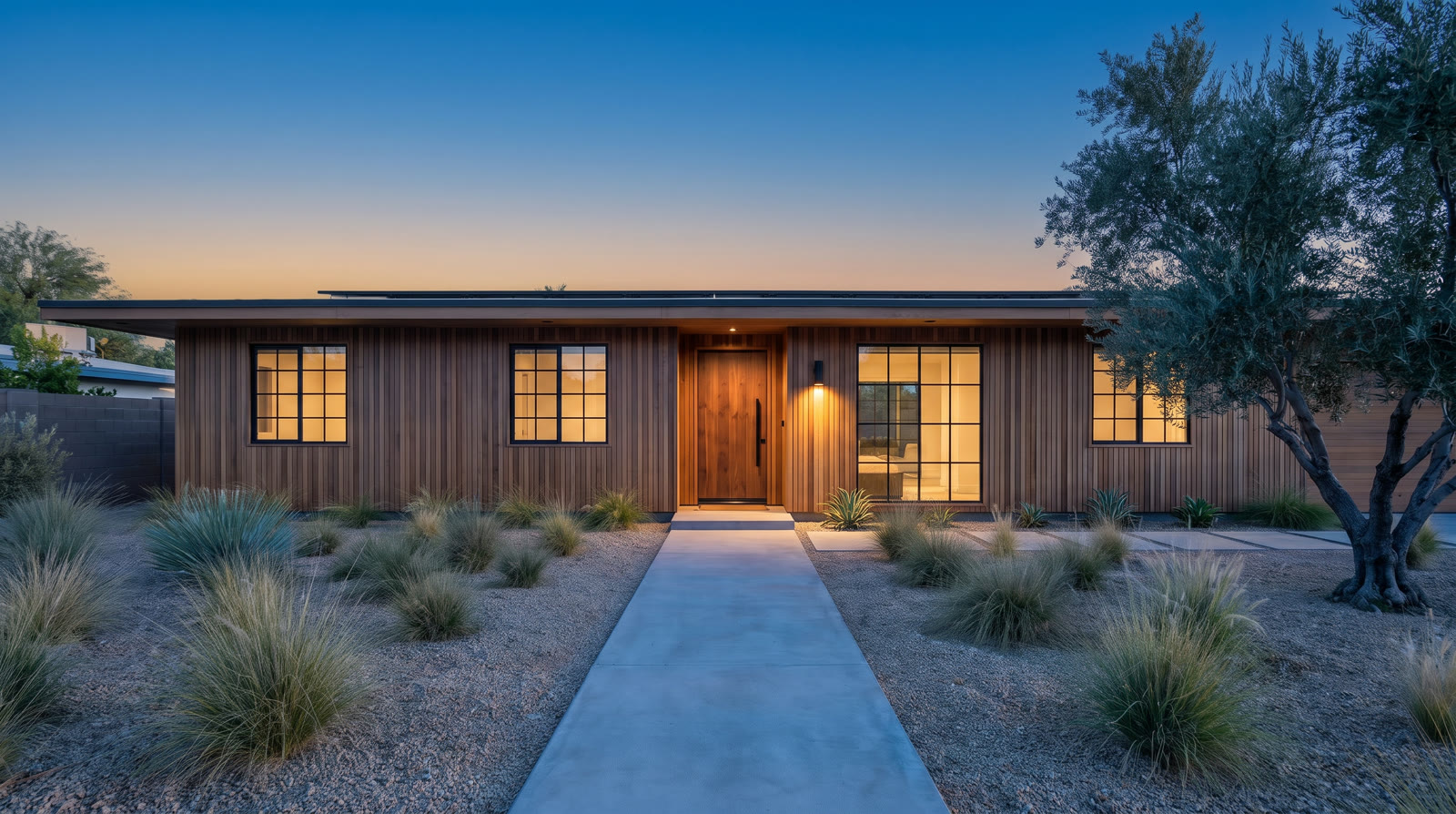 Last frame
Prompt
Real estate listing video, a time-lapse from late afternoon to dusk. A slow, steady push-in at eye level along the front path toward the front door that stops well before the door, one smooth gimbal move. The sky slowly deepens to blue, the light by the door comes on, and the lights inside the house come on one by one, so the reflections in the window glass fade as the rooms behind them glow warm. The window frames and panes never change. Keep the house, the path, the olive tree and every plant exactly as in the photo. No people.Step 4: Make a real estate walkthrough video from listing photos
A walkthrough video takes buyers through the house the way they would walk it at a showing: exterior, entry, living areas, kitchen, bedrooms with their bathrooms, then outdoor space. Keep each bathroom next to the room it opens off rather than saving them for the end, so the viewer can build a map of the house. Before generating anything, fix three things for the whole tour: that order, one direction of travel that only turns where the floor plan turns, and one time of day that matches the exterior shot. A tour that jumps between rooms, reverses direction or goes from noon to dusk between two cuts reads as a slideshow.
A few prompt rules decide most of what goes wrong:
- Prefer push-ins. A push-in only shows what is already in the photo. A pull-back, a pan or a move toward something off center makes the model draw past the edge of the frame. On the tour above, the exterior shot walks past the olive tree, and the siding it uncovers was drawn by the model.
- Give the camera a path a person could walk. Say where the move stops and what it stays clear of. “Past the end of the dining table” sent one take’s camera straight through the table, and naming a side to pass on still flew it over the top; “stops before it reaches the dining table” kept it on the patio.
- Describe the light and the direction the same way in every prompt, such as “mid-morning light from the east windows” and “moving left to right”, so every clip shows the same house on the same day.
- Leave the sound to the cut. Set
audio: falseon models that take it, and drop the audio track from those that don’t, so one music bed runs under the whole tour. - Check every clip against its photo. Each request is a new generation, so one clean clip says nothing about the next.
Make the whole walkthrough in one request
Seedance 2.5 on POST /v1/image_to_video takes the listing photos as reference images, named @Image1, @Image2 and so on in the prompt, and returns the walkthrough as one video, cutting from room to room. Write the rooms into the prompt in walking order, one shot each. Here, five photos became a 15-second walkthrough:
Inputs
- @Image1
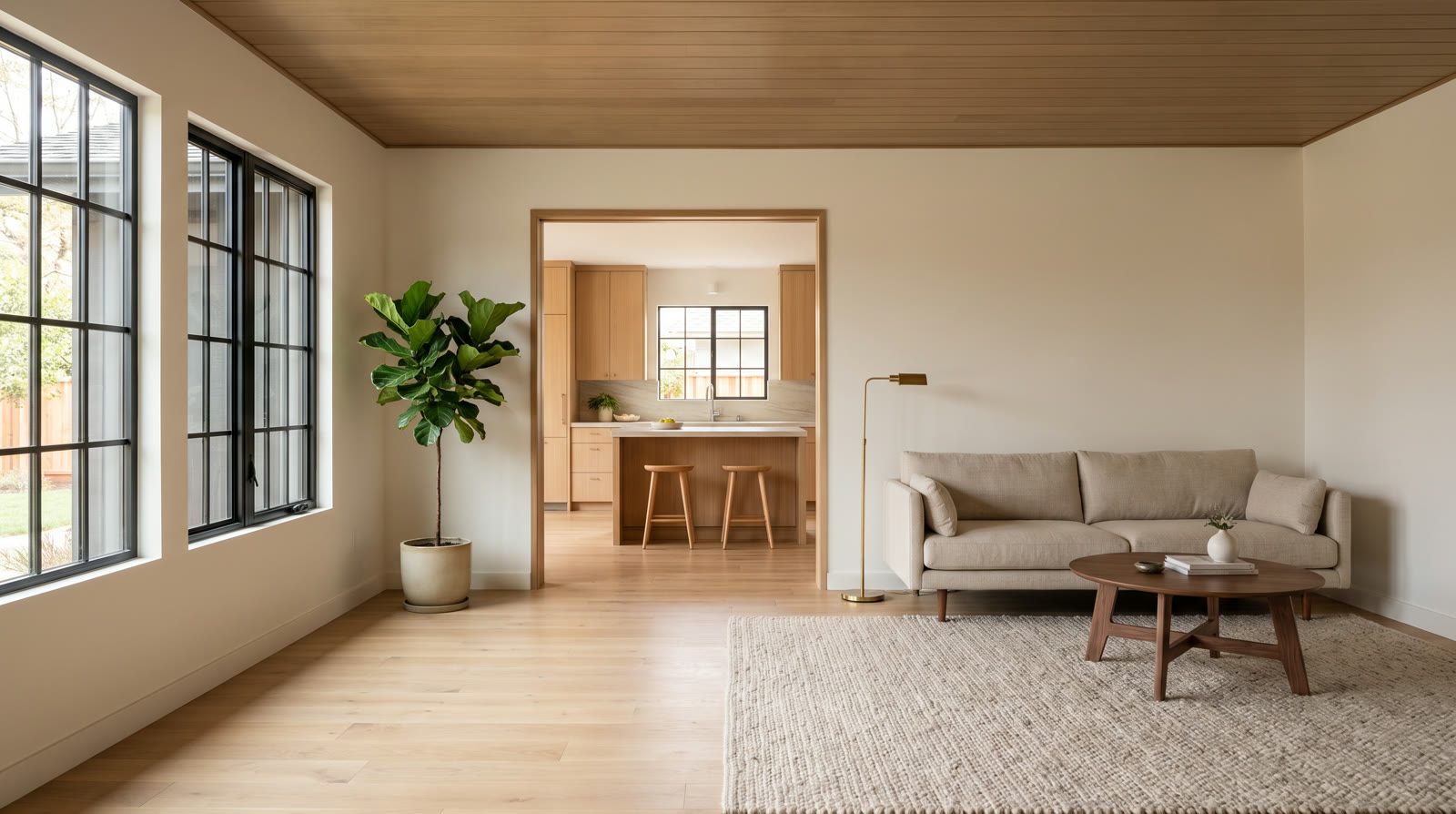 @Image2
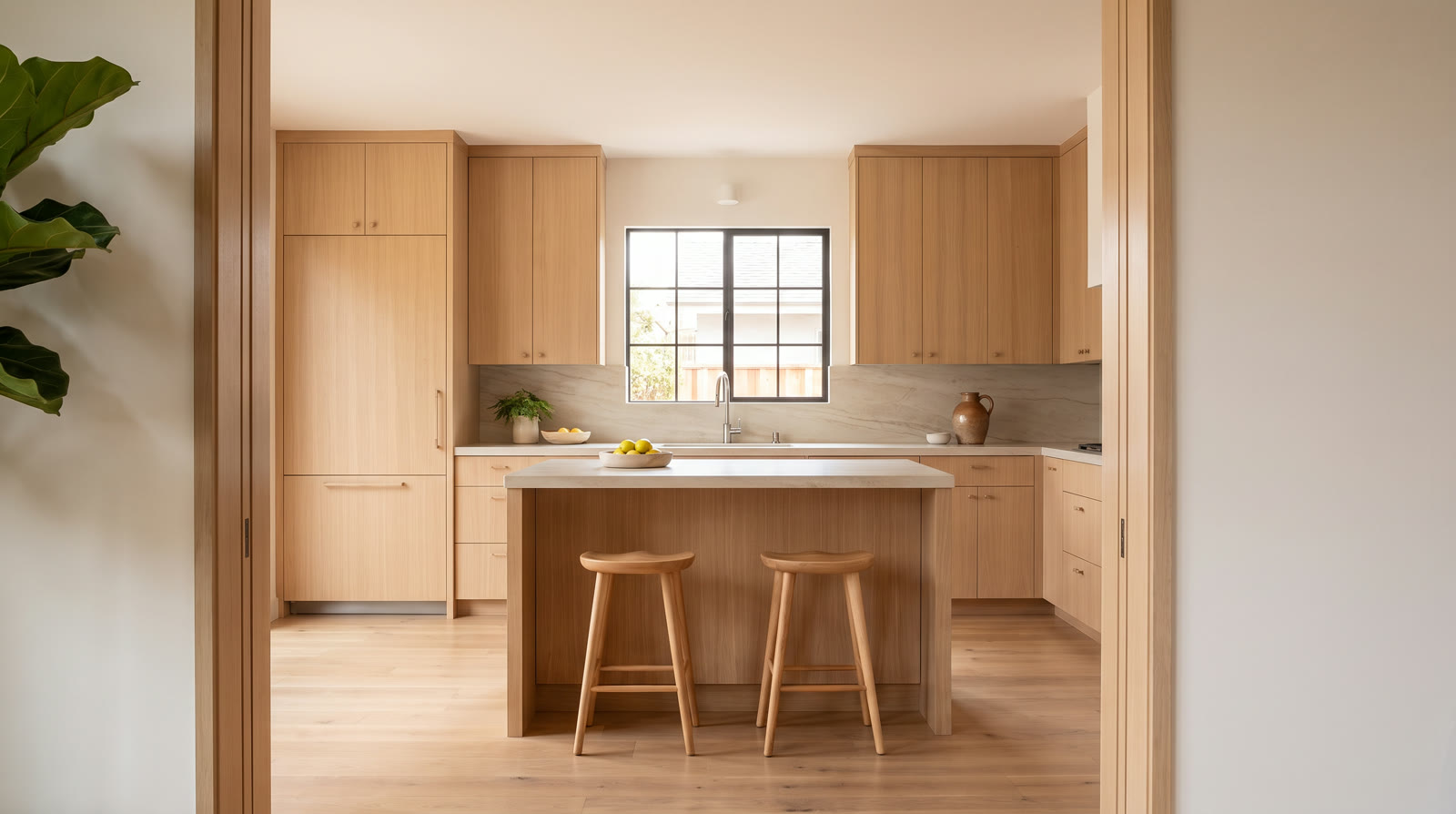 @Image3
- @Image4
- @Image5
Prompt
Real estate walkthrough video of one house, five shots cut on the move. The camera stays at eye level on a smooth gimbal and always moves forward, never turning back. Shot 1: the camera moves slowly up the front path of @Image1 toward the walnut front door. Shot 2: inside, a slow push across the living room of @Image2 toward the open doorway in the back wall. Shot 3: the camera carries on through that doorway into the kitchen of @Image3 and slows beside the stone island. Shot 4: a slow push into the bedroom of @Image4 toward the window that stops before it reaches the bed. Shot 5: outside on the patio of @Image5, a slow push toward the open glass doors that stops before it reaches the dining table. Every cut happens while the camera is moving, and each shot picks up the same forward motion. The same warm late-afternoon sunlight in every shot. Keep every room exactly as in its photo: the same walls, floors, ceilings, windows, furniture and plants, with no new objects. Only the camera moves: nothing in the scene moves, opens or changes. No people, no text.Or animate each room and cut the clips together
Each room photo becomes one slow camera move, as in the tour at the top of this page, made from three photos. It takes more requests, and you can regenerate one room without touching the others. Two photos of neighboring rooms, one visible from the other through a doorway or across an open plan, become one continuous walk when you send them as the first and the last frame. On Runway Dev, Seedance 2.5 and Seedance 2.0 take a last frame, as do Kling 4.0, Kling 3.0, Kling O3, Wan 3.0, MiniMax H3 and Gemini Omni Flash 1.1.
Step 5: Add music and a voiceover in any language to a listing video
One music bed runs under the whole tour, and a voiceover covers what the pictures can’t show, such as the year of a renovation or what’s included in the sale. On Runway Dev, POST /v1/text_to_music with Eleven Music v2.5 composes the bed from a description, and POST /v1/text_to_speech with Eleven v3 or Eleven v4 reads the script in a preset voice. For buyers abroad, POST /v1/voice_dubbing turns the finished voiceover into another language and keeps the narrator’s voice, without a second recording.
Here is the walkthrough from Step 4 with its music and voiceover. Pick a language:
Prompt
Music: Instrumental background music for a calm home tour video: warm felt piano and soft nylon-string guitar, gentle and unhurried, about 70 beats per minute, light and optimistic, no vocals, no drums, no sound effects. Twenty seconds long, ending on a soft resolved chord.

Voiceover: A mid-century home, renovated in 2024. Step inside to white oak floors, a kitchen built around a stone island, a bedroom full of morning light and a garden made for long evenings.
When you cut room clips together yourself, put them in walking order and lower the music under the voice. Cut on the move: the camera reaches a doorway and the next clip picks up the motion. A hard cut or a short crossfade reads like a blink, while a wipe or a spin breaks the sense of walking through the house. The address, the price, the agent’s details and the AI label go on as an overlay in the same step, because video models misspell and warp text, while a renderer sets it exactly.
Step 6: Export a listing video in HDR and every social format
The finished tour goes out in more than one shape, and none of it needs a new generation.
- HDR.
POST /v1/video_to_hdrwith Ruby, Runway’s HDR grading model, upconverts the tour to HDR10, HLG or HDR ProRes for HDR TVs, phones and YouTube. Ruby extends the tour’s own pixels into the HDR range and doesn’t redraw them, so the house stays exactly as it was generated. - Formats. 1:1, 4:5 and 3:4 cuts for feeds are crops of the 16:9 tour when the room fits the frame. For a full-height 9:16 version, Aleph 2.0’s
targetAspectRatioextends the shot, and the picture it adds above and below needs the same check as any generated frame.
Step 7: Automate listing content for every new listing with a Workflow
A Workflow puts every step above into one graph and runs it from one API call. This one was built with the Runway Agent in the Runway app from a short brief, laid out in five zones, one per job, and the screenshots below are from one run of it. It isn’t tied to this house: any listing’s photos go in at the start.
Zone 1: Adjust the photo lighting. Each listing photo goes through its own Nano Banana Pro edit, and all five edits share one prompt that corrects the exposure and white balance and changes nothing else. Here, a badly lit living room goes in and comes out corrected:
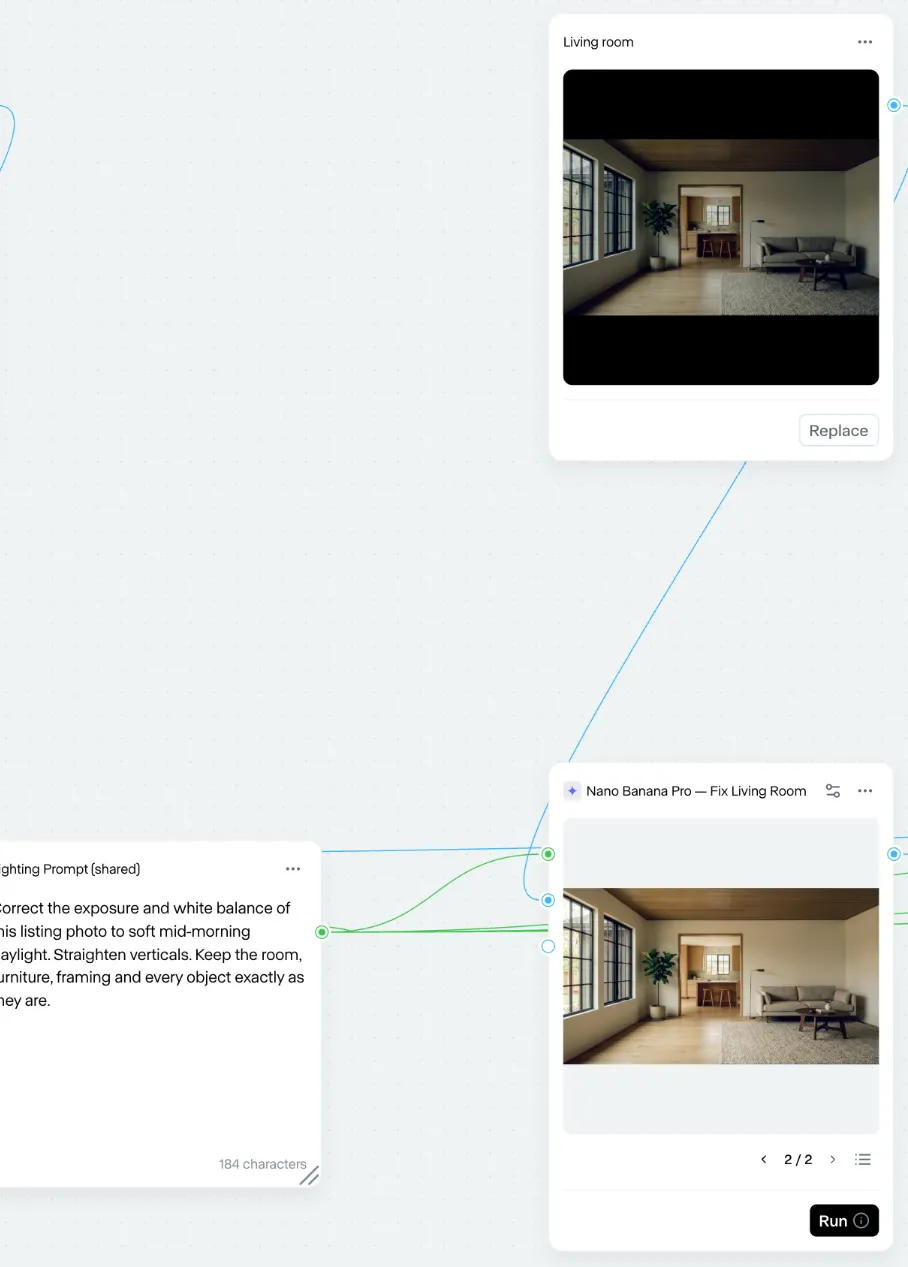
Zone 2: Stage the room. The corrected empty room goes into a Nano Banana Pro edit with the staging prompt.
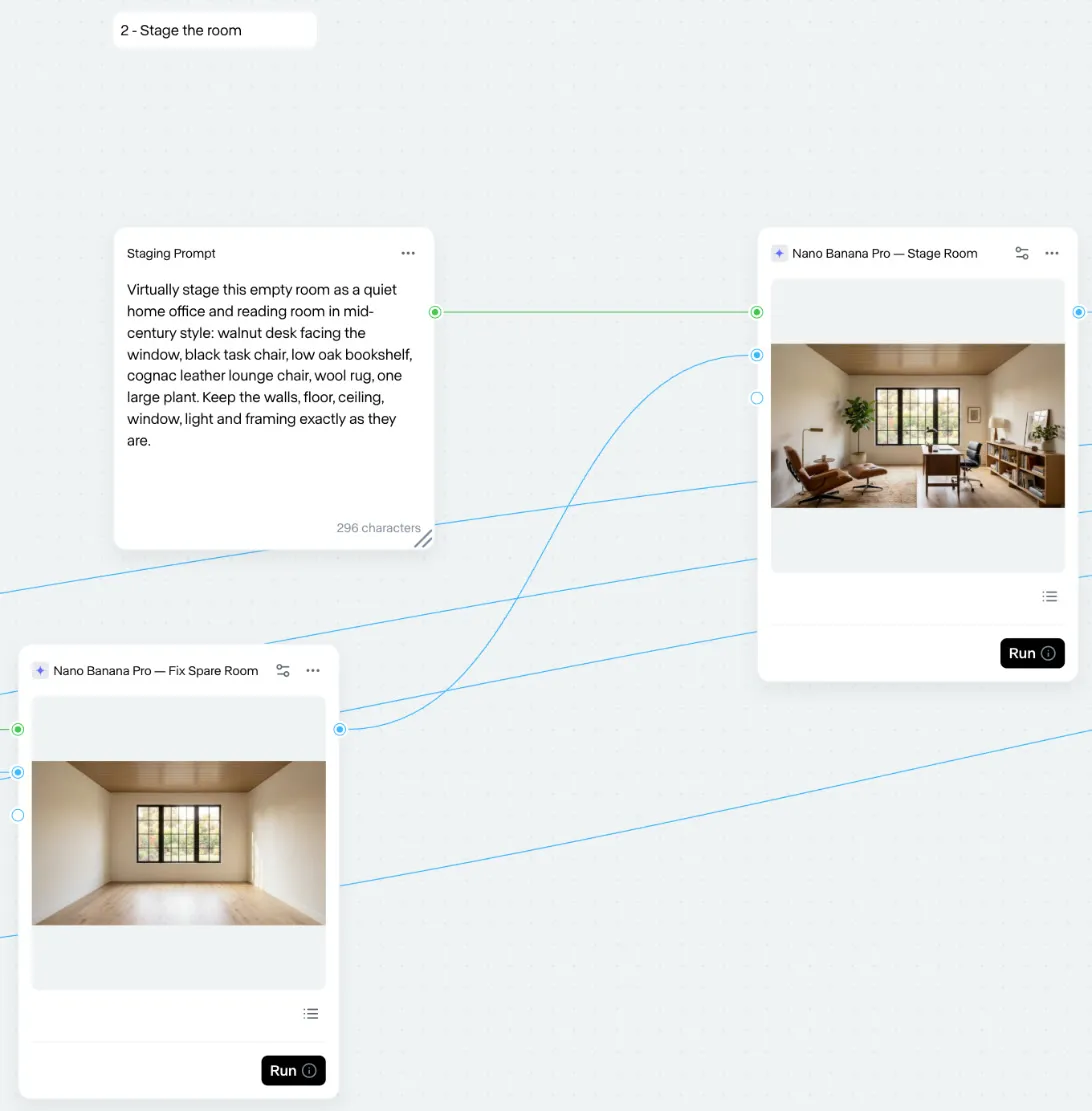
Zone 3: Create the walkthrough video. Seedance 2.5 takes the corrected photos and the staged room as references, in walking order, with the walkthrough prompt.
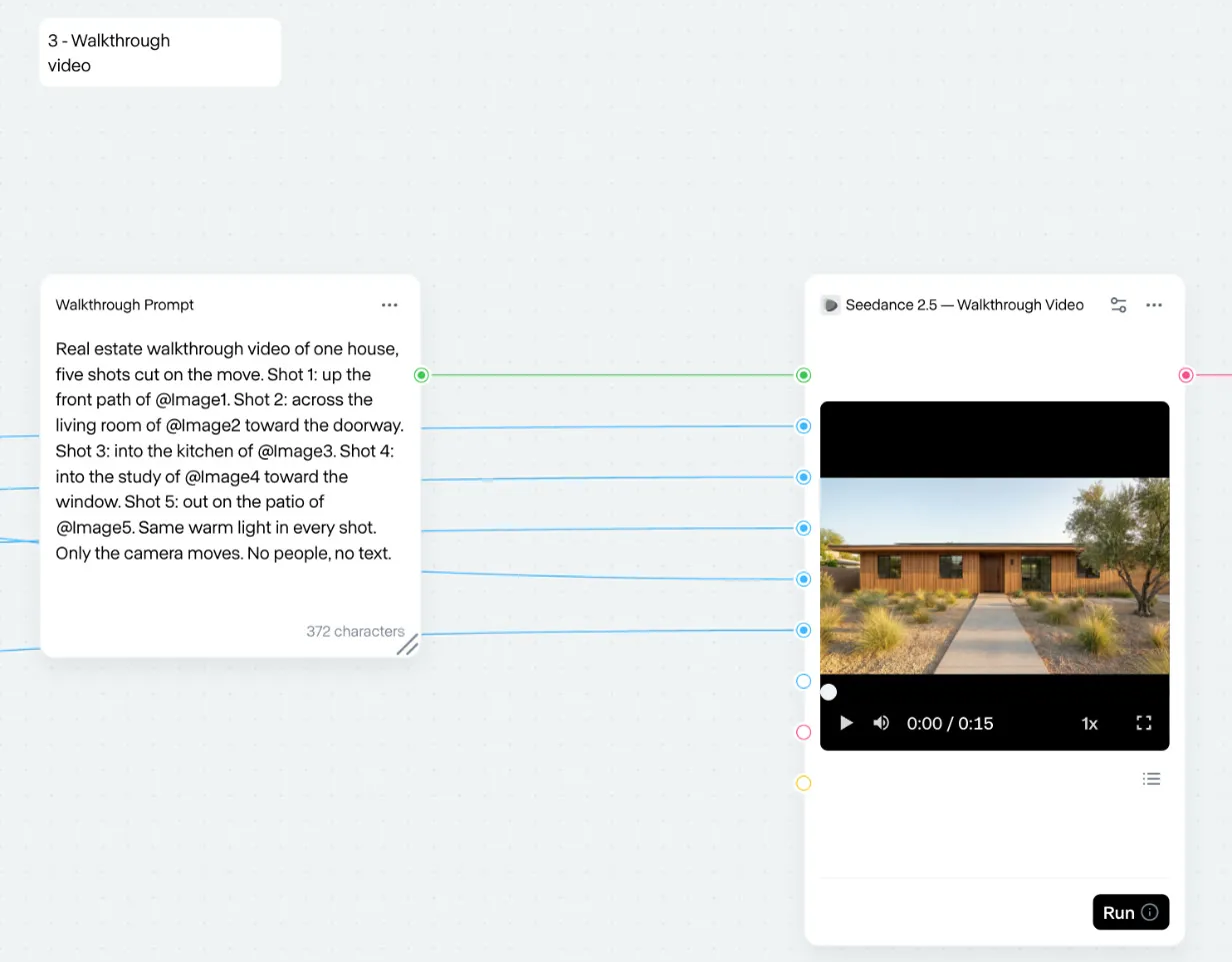
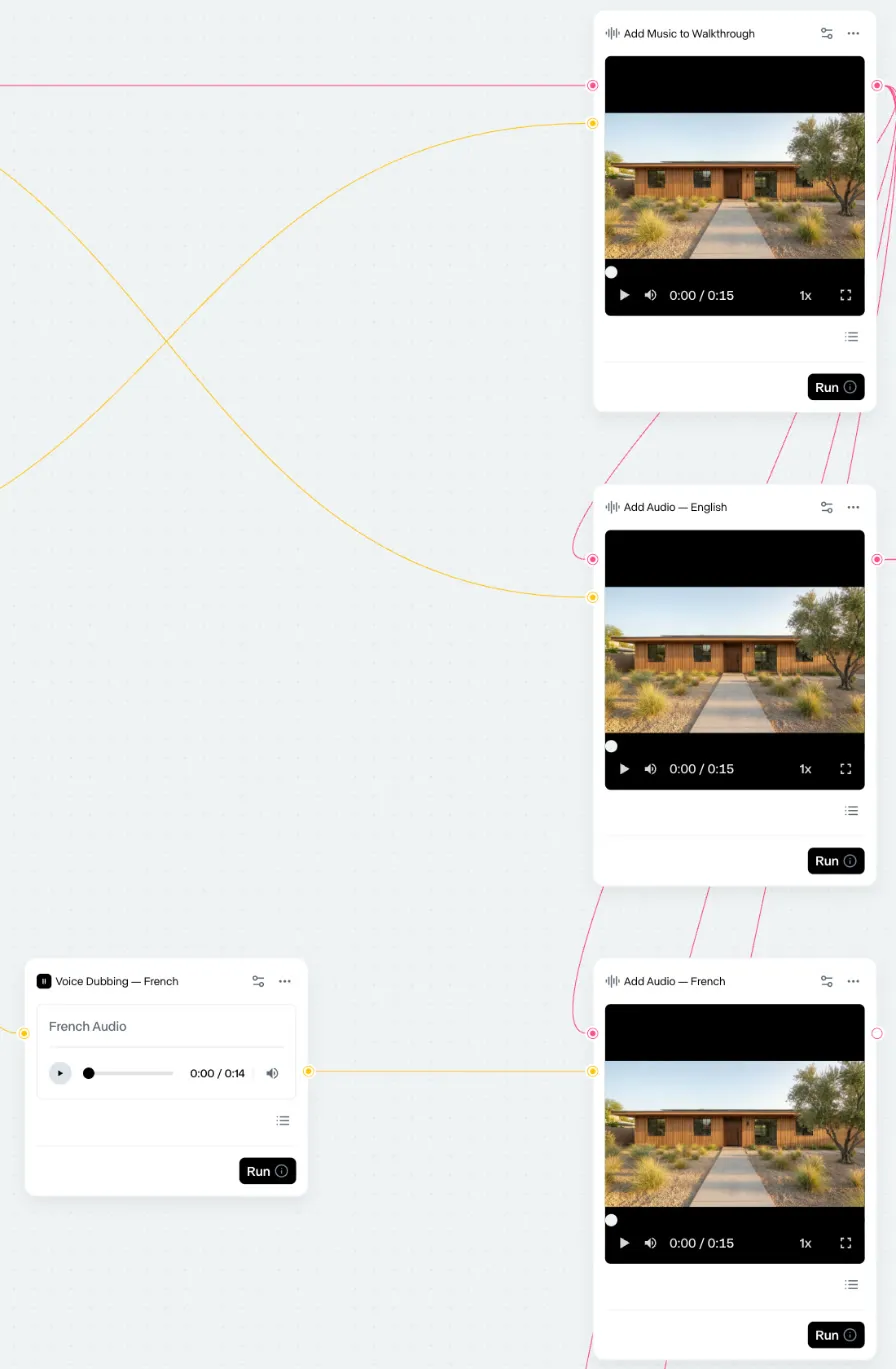
Zone 4: Add the score and voiceover. Eleven v3 reads the script, three dubbing nodes turn it into French, Spanish and Portuguese, ElevenLabs Music writes the bed, and add-audio nodes mix the music and each voiceover onto the walkthrough.
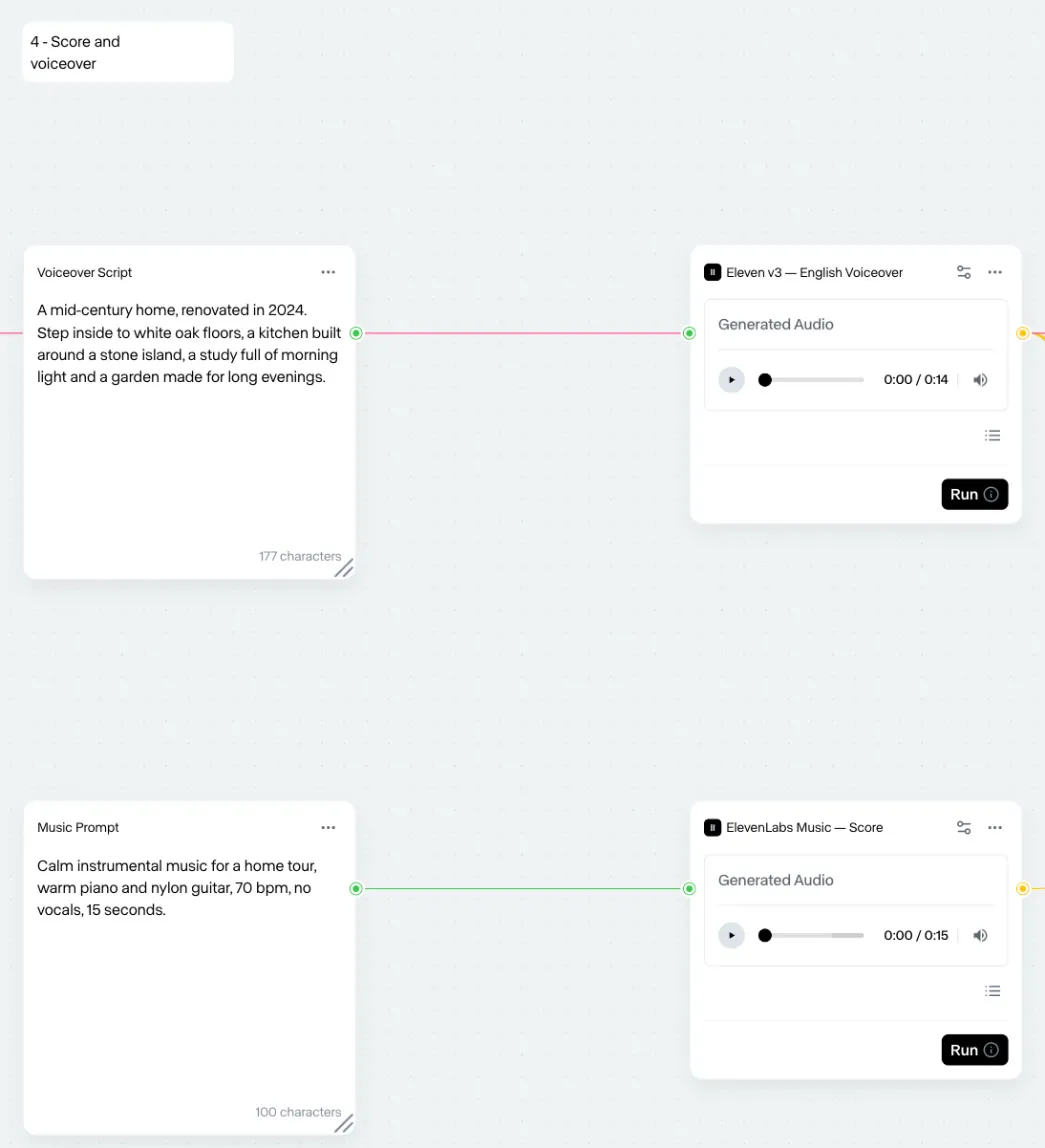
The music goes onto the walkthrough once, then each voiceover is mixed on top. The French row is shown, and Spanish and Portuguese repeat it:
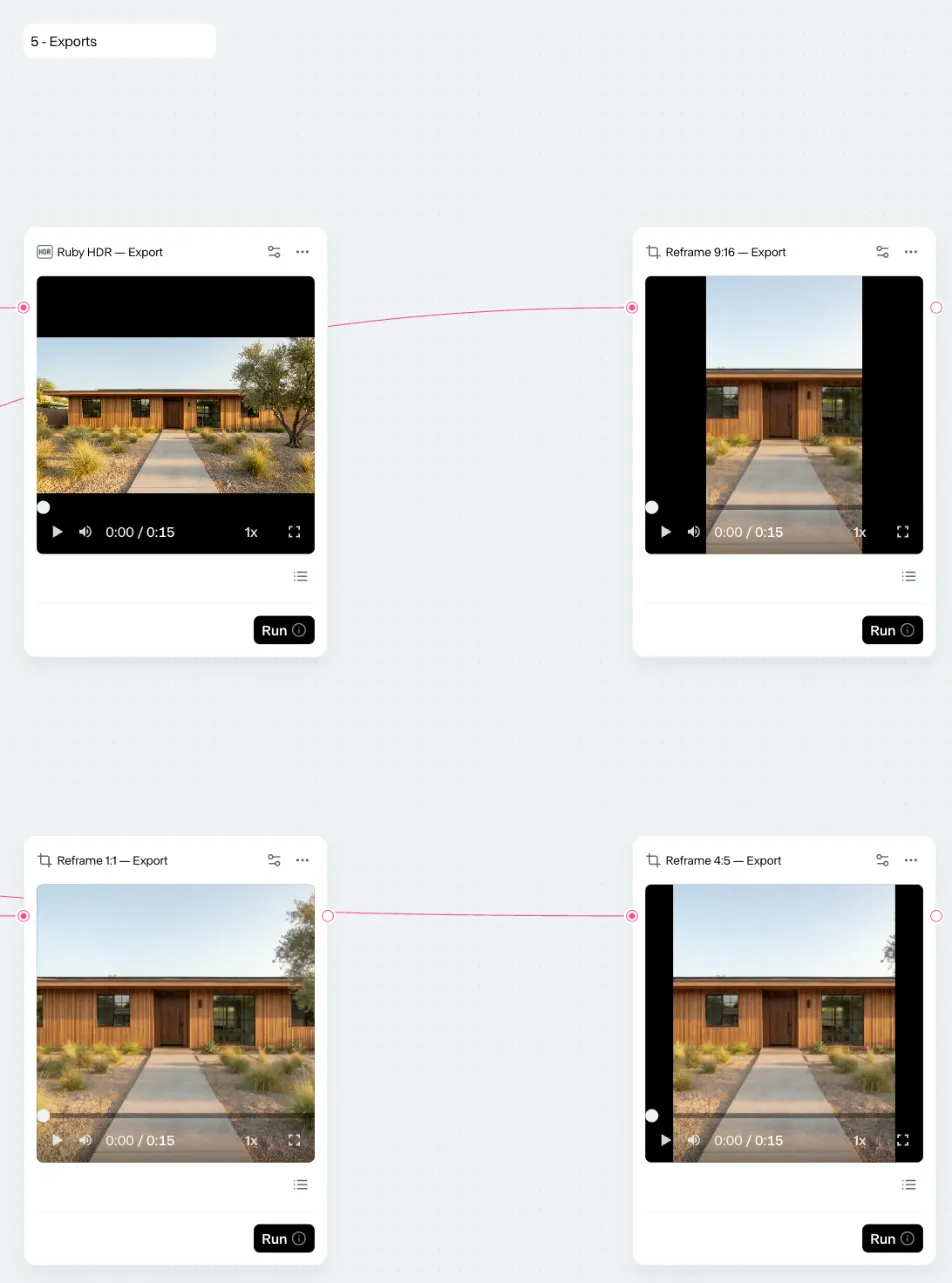
Zone 5: Export every format. The English version goes to Ruby for an HDR master and to reframe nodes for 9:16, 1:1 and 4:5.
Publish the Workflow as an endpoint on Runway Dev, and the version page in the Developer Portal lists the node ID of every input. When a new listing lands in your feed, your code sends its photos and script and waits for the outputs:
import RunwayML from '@runwayml/sdk';

const client = new RunwayML();

const { id } = await client.workflows.run('YOUR_WORKFLOW_ID', {
  nodeOutputs: {
    // Node IDs from the version page in the Developer Portal
    EXTERIOR_PHOTO_NODE_ID: {
      image: { type: 'image', uri: listing.photos.exterior },
    },
    LIVING_ROOM_PHOTO_NODE_ID: {
      image: { type: 'image', uri: listing.photos.livingRoom },
    },
    KITCHEN_PHOTO_NODE_ID: {
      image: { type: 'image', uri: listing.photos.kitchen },
    },
    SPARE_ROOM_PHOTO_NODE_ID: {
      image: { type: 'image', uri: listing.photos.spareRoom },
    },
    PATIO_PHOTO_NODE_ID: {
      image: { type: 'image', uri: listing.photos.patio },
    },
    VOICEOVER_NODE_ID: {
      prompt: { type: 'primitive', value: listing.voiceover },
    },
  },
});

const invocation = await client.workflowInvocations
  .retrieve(id)
  .waitForTaskOutput({ timeout: 30 * 60 * 1000 });

console.log(invocation.output, invocation.nodeErrors);- One request per listing. Inputs you leave out run with the values saved in the graph, so send every photo and the script for each listing, or the saved house’s rooms end up in the new listing’s content.
- Batches queue on their own. Invocations you start together wait as
PENDINGorTHROTTLEDand start on their own. Poll no more than once every five seconds, or use the SDK’s wait helper. - Per-node results.
outputmaps each output node to its files andnodeErrorslists any node that failed, so check both before anything goes out. Download the files to your own storage, since output URLs expire within 24 to 48 hours. - Versions you choose. Editing the graph in the app doesn’t change a published version. Publish again, test the new version and switch the ID in your configuration when you’re ready, for example to use a model that shipped this week.
- Billing per node. A run uses your Runway Dev credits and is billed for each node that runs, at that node’s own price, with the total in
cost.credits.
Which model should you use for each step?
No single model is the default for listing video. A slow push-in over one photo is a well-solved move that many models make cleanly, a day-to-dusk shot or a walk between rooms needs a model that takes a last frame, and a finished tour needs a video editor and an HDR grade.
| Step | Models |
|---|---|
| Edit or stage a listing photo | Nano Banana Pro, GPT Image 2.5 |
| Upscale a small listing photo | Magnific Precision Upscaler |
| Multi-room walkthroughs in one request | Seedance 2.5, Seedance 2.0 |
| Day-to-dusk and room-to-room moves | Seedance 2.5, Kling 4.0, Kling 3.0, Wan 3.0, Gemini Omni Flash 1.1 |
| One camera move over one photo | MiniMax H3 Max, Wan 3.0 Prime, Gemini Omni Flash 1.1 |
| A 4K master | Seedance 2.0, Gemini Omni Flash 1.1, Kling 3.0 4K, Kling O3 4K |
| An HDR master | Ruby |
| Voiceover | ElevenLabs Eleven v3 and Eleven v4 |
| Voiceover in another language | ElevenLabs Voice Dubbing |
| Music bed | Eleven Music v2.5 |
| A new season or format for a finished clip | Aleph 2.0, Gemini Omni Flash 1.1, Seedance 2.5 |
Every model in this table runs on Runway Dev behind one API key, one credit balance and one bill, so changing the model for one step is a one-line change. New models ship most weeks, which makes a hard-coded model ID a judgment with an expiration date. Runway trains frontier models and serves the best from other labs, so we know which one wins which job, and when that changes. The Model Router packages that judgment: you set the priority between cost, quality and latency and the models it may use, then pass a config ID in place of a model name.
What’s the best API for real estate listing videos?
Runway Dev, for four reasons:
- Every model the job needs is there. The leading image, video, voice and HDR models for each step sit behind one API key and one bill, and new ones ship most weeks. That includes Runway’s own models: Aleph 2.0 for video editing and Ruby, an HDR model you can’t get from any other API.
- Workflows run as API endpoints. Build the pipeline once, publish it and call it once per listing, as in Step 7.
- Model Routers pick the right model for each request. A listing pipeline runs on every listing, so sending every clip to the most expensive model adds up fast. A Model Router picks the best model within the priority and cost cap you set. In Runway’s double-blind test of 250 image-to-video prompts, it cut spend 66% with a cost cap while keeping production-grade assets.
- It’s built for agents. With Runway Dev MCP and the Runway Dev agent skills, your coding agent can build the whole integration and the Workflow the way Runway would. See Runway Dev for agents.
FAQ
How do I turn real estate listing photos into a video tour with an API?
Send the room photos in walking order to Seedance 2.5 as reference images and describe the walk room by room, or animate each photo on its own and cut the clips in floor-plan order. Then add a music bed and a voiceover. On Runway Dev every step is a request on one API key, and a published Workflow runs the whole pipeline from one call per listing.
How much does an AI real estate listing video cost?
On Runway Dev, video models bill per second of output at each model’s own rate, listed on the pricing page: a tour costs its clips times their length times that rate, plus the photo edits and the audio. Each request returns estimatedCost, the most it can charge, before it runs.
Do AI real estate videos need a disclosure under California AB 723?
For altered photos, yes. Since January 1, 2026, AB 723 requires California real estate licensees, and anyone acting for them, to label digitally altered listing images, such as staged rooms, and link the unaltered original. Lighting, color and cropping fixes are excluded. The law doesn’t mention video, so label edited clips too. This isn’t legal advice.
Why does my AI listing video change the room?
The model draws every frame, so it can add, remove or change things, most often at the edges of the frame and in anything the photo doesn’t show. Prefer push-ins, give the camera a path a person could walk and check each clip against its photo before it’s published.
How long should a real estate listing video be?
Most run 30 to 90 seconds on a listing page or YouTube and under 30 on Reels and TikTok. One AI clip covers one photo for a few seconds, so a one-minute tour takes a dozen or more clips.
What aspect ratio should a listing video be?
16:9 for listing pages and YouTube, 1:1 and 4:5 for feeds, and 9:16 for Reels, TikTok and Shorts. Crop each version from the 16:9 tour when the room fits the frame: cropping is a common photo adjustment, while asking a model to fill in above and below adds picture the property may not have.
Can I add the price, address and agent branding to an AI listing video?
Yes, as an overlay in your own render step rather than in the prompt. Video models misspell and warp text, while ffmpeg or a template renderer sets it exactly, and the same step can place the AI label and the link to the original photos.
Do I need permission to animate a photographer’s listing photos?
Check the photo license. Listing photos are often licensed to the agent for marketing that listing, and some licenses exclude derivative works such as video, so animating them needs the same rights as any other use of the photos.
Can I use AI-generated listing videos commercially?
Yes. Runway Dev leaves your outputs free for commercial use, and whether you can use AI video commercially covers the terms, copyright and disclosure questions in full.
How do I build an AI real estate video generator into my app?
Sort the listing photos from an upload or your feed by room, then call your published Workflow on Runway Dev once per listing. Store the photos and videos with their sources and show the label and originals link wherever the video plays.
Will my listing videos change when models update?
A model ID keeps calling the same model, though each request is a new generation, so no two clips are identical. New models only reach your pipeline when you choose them: in your code, in a Model Router config that allows them or in a new Workflow version.
Can I post an AI listing video on the MLS?
Most MLSs accept a video link, often with separate rules for branded and unbranded versions, and rules for labeling AI media are new and vary. Check your MLS’s rules before publishing, and keep the original photos one click away.
Start building on Runway Dev
Related articles
 Use cases
How to generate UGC videos with an API
How to generate UGC video ads with an API, from one take of a creator presenting your product to hook and language variants at scale.
 Use cases
How to generate product videos with an API, at scale
How to build an API pipeline that turns product photos into finished video ads, which model to use at each step, and what a product video costs.
 Concepts
Can I use AI image and video generation commercially in my product?
Provider terms, copyright, input rights, training and disclosure: what decides whether you can ship AI images and video commercially.